Jira vs ClickUp for Creative Agencies in 2026
Comparing Jira vs ClickUp? Here’s how each tool performs for creative agency workflows and client projects.

Adetola Rachael Iyanuoluwa

If you’re reading this, you own or lead a creative agency, and you need a project management tool that can consolidate your workflow into a single platform.
Right?
I compared Jira and Clickup in detail in this article. We looked at how agencies use their features every day, and:
Hint: They are great project management tools, but they don’t offer every feature a creative agency needs for a successful workflow.
So I’ll introduce ManyRequests as an agency-first alternative. This is not to say that ManyRequests is better than Jira or ClickUp. We believe ManyRequests is what creative agencies like yours really need.
Let's compare these tools:
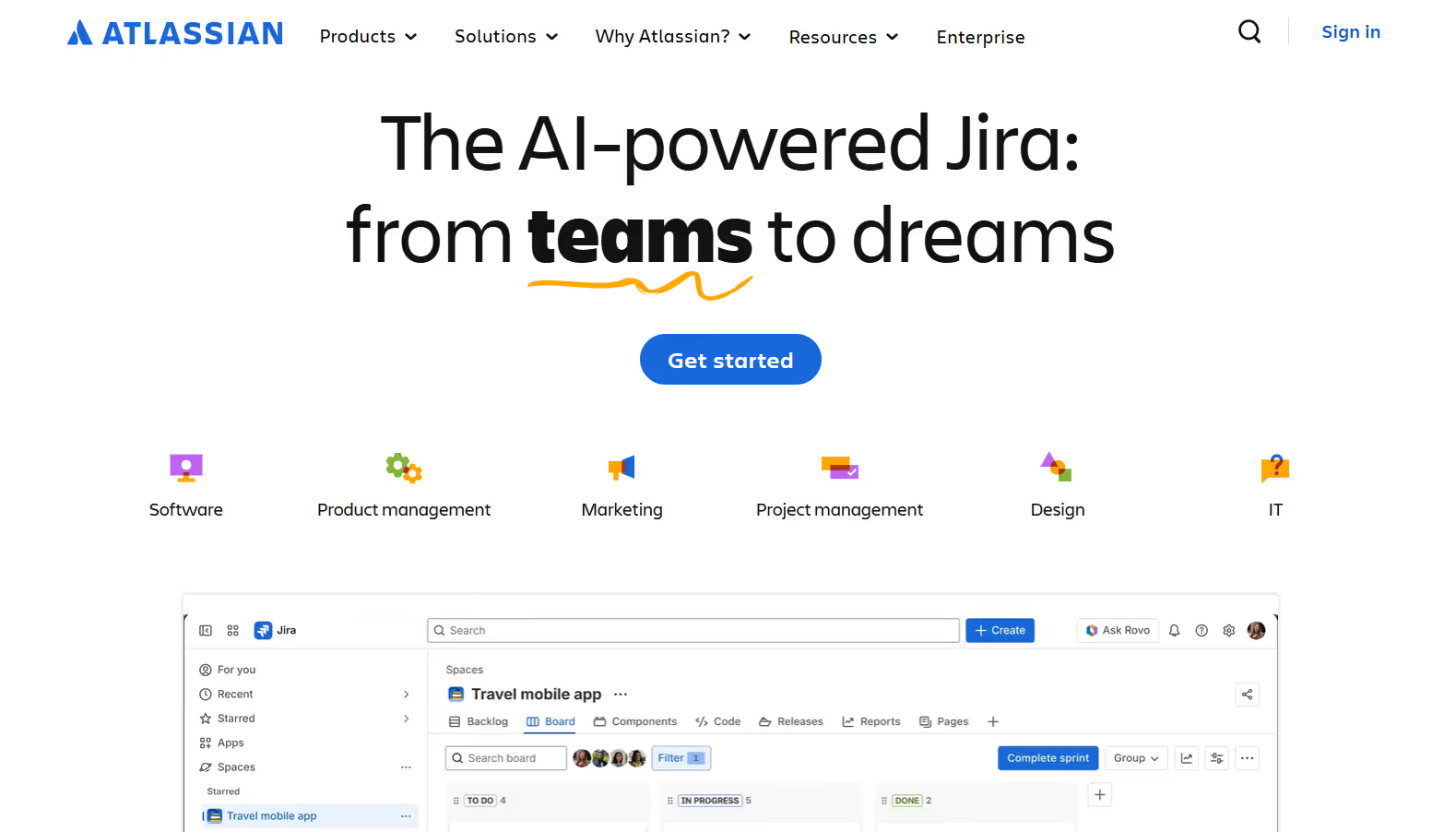
Jira is a project management and issue-tracking tool for software teams to manage tasks, track bugs, and manage their workflow.
And while it has most features to track your projects, Jira was not built specifically for creative agencies.
Nevertheless, let's look at some of its features that work for creative agencies:
Jira centers everything around agile frameworks. It allows you to model your process and manage work through three primary views:
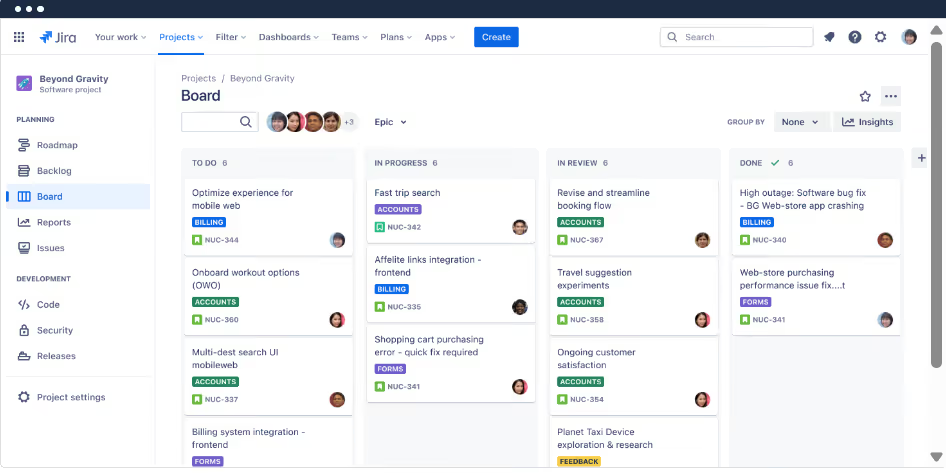
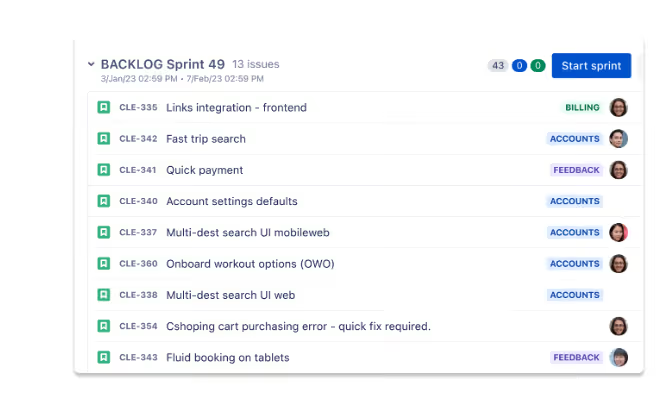
This structure works well for engineering teams, but it may be a bit difficult for creative agencies.
The thing is, Jira is primarily directed towards software development teams, and while you can make use of some of its features, like the agile project management one, you’ll need to learn how to use Jira.
You’ll need to translate client requests into epics, issues, and sprints, which don't naturally align with creative work.
If you want to use a project management tool, better one that you can understand at first glance (or maybe third).
Jira is great at internal task management. Every task you create is called an “issue,” and you can assign, prioritize, and connect it to other tasks.
You can set due dates, track estimated versus actual time spent, and define task dependencies.
Let's look at some ways it does this:
Jira tracks time through its built-in time-tracking feature, which allows your team members to log time spent on their work directly on the task.
When they start the tracker, each issue (we’ll just call it tasks) displays three key fields;
It's basic, but it gets the work done. Your team can log time when they hit Log Work on a task, enter the time they spent, and add a description of the work they did. The more specific, the better.
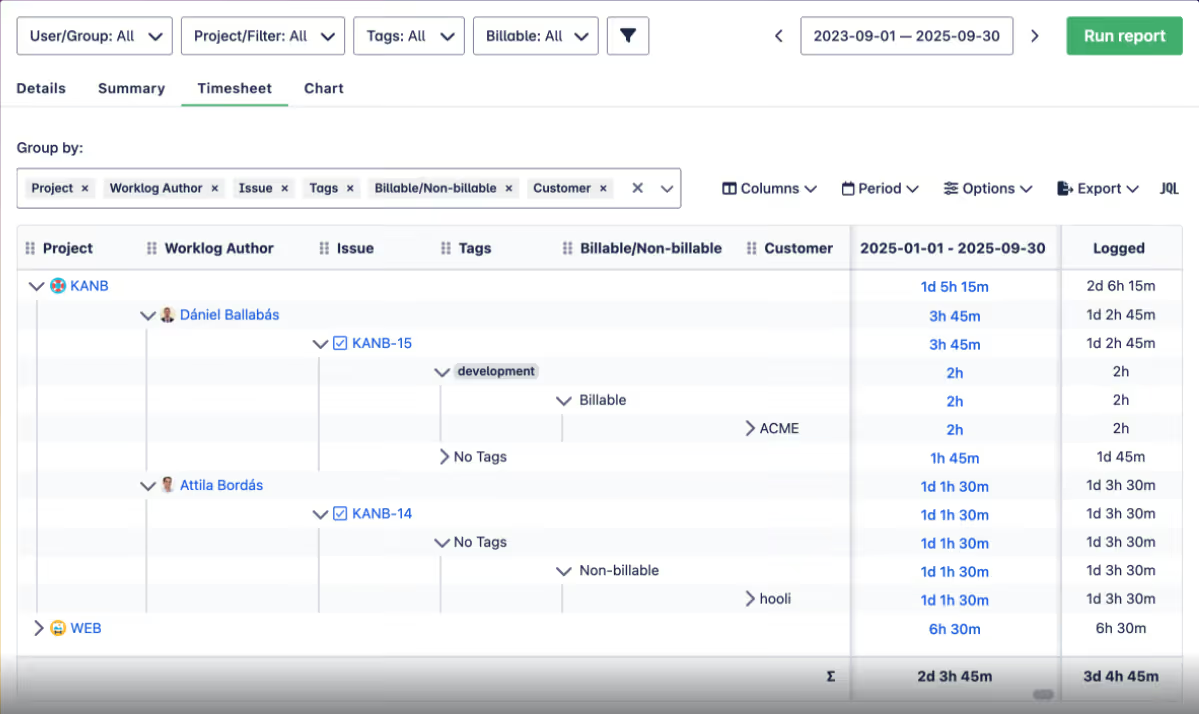
When they log their time, Jira automatically updates the "Time Spent" and "Remaining Estimate" fields, so the team knows the task's current progress.
You can assign tasks while you're creating the task or after you’ve created it. When you create a new task (called an "issue" in Jira), you'll see a field labeled "Assignee" where you can select the team member responsible for completing the task.
If you’re assigning an existing task, open the issue, find the "Assignee" field on the right-hand side, and choose the person from the dropdown list of project members.
You can learn more about how to assign tasks in this video.
The assigned team member will receive a notification about the new task, and that's all. Jira also has an Assign to me tab that lets you assign tasks to yourself.
You can create “if this, then that” rules to handle repetitive actions, such as:
If you handle mature internal processes, this automation reduces manual coordination. But the only tradeoff is that Jira is complex. You’ll need time to set up and maintain automation. But if you look at it, it's not exactly a bad tradeoff.
It's simple. Jira wasn't built for creative teams, so some features you’d expect in a project management tool aren't there. Some of these include:
As a result, you’ll need to rely on a patchwork of tools (Jira for the creative team’s tasks, email for requests, Drive for files, separate proofing tools for feedback, and another system for billing), and you’ll also probably pay subscription fees for some of these tools.
That's already a lot.
ClickUp is a configurable project management tool that can help creative agencies centralize their work. You can manage your workflow, tasks, and team from one unified platform.
It's flexible, but that flexibility shifts a lot of responsibility to your agency.
Let's see how:
ClickUp uses a structured system to organize agency work. Each project you add uses a layered system to categorize every task underneath it.
The levels of hierarchy look like this:
This structure allows agencies to model almost any internal workflow. You can build separate spaces for design, content, marketing, or operations, then tailor statuses, fields, and views for each.
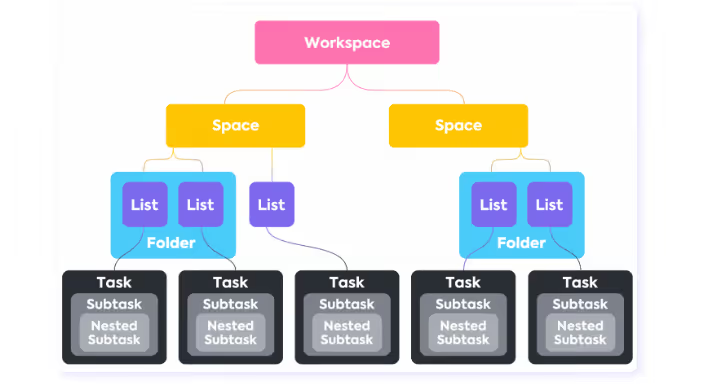
If you offer many services, it's a great way to manage every project for each service on a single platform. The only downside is that ClickUp wasn't designed solely for creative agencies, so you may not find strong guidance on how to structure client work, ongoing requests, or even retainers.
You’d have to do a series of trial-and-error tests to find a setup that sticks.
ClickUp provides no-code automation that can significantly reduce manual coordination. You can trigger actions based on task status changes, assignments, or due dates, more like an “If this happens, then that should happen” trigger.
For example, you can trigger the system to do these:
ClickUp also has pre-configured automation templates for common scenarios, so you can easily use the same automation for clients with similar projects.
ClickUp doesn't have a client portal, per se. It allows you to invite your clients as Guests, which gives them access to selected tasks. However, Guest access still isn't a Client Portal. Clients can still access the agency's workspace and interact with a system designed for your team members. You’d have to manage permission manually for every client you bring on, and if you’re a large agency running high client volume, it may be difficult to manage.
ClickUp provides a list of ways you can visualize your workload, including:
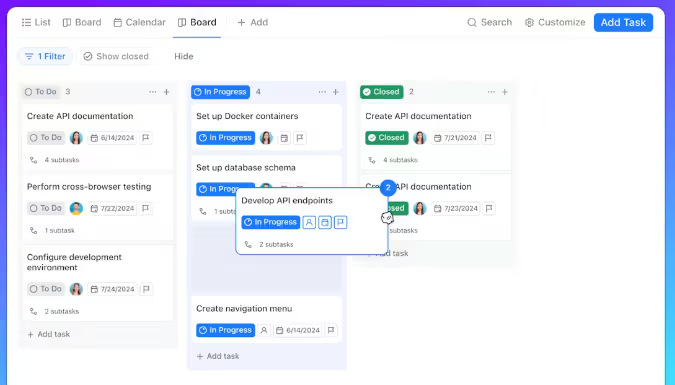
This level of visibility is great. You can easily track capacity and see how work moves through the team on the dashboard.
ClickUp is great for an internal work management platform, but it lacks several capabilities that creative agencies usually need as they scale:
To make it work, you may need to pair ClickUp with separate tools for client requests, feedback, and payments, which erases the whole point of using a consolidated system in the first place.
Most project management tools assume that work begins when you create a task internally.
Jira and ClickUp, for instance, start their workflow after you create the task.
But you know this isn't correct for creative agencies.
For creative teams, work begins when your client sends in a request. Most of the time, these requests are unstructured, incomplete, and it may not even align with how your team expects work to look like.
We built ManyRequests around that reality. ManyRequests builds a system around how creative work enters, moves through, and exits your agency.
Let's see what ManyRequests does.

ManyRequests is one of the best project management tools for creative agencies. It's an all-in-one white label system designed specifically for creative agencies.
And if you're looking for a system that has everything you could need for your agency workflow, ManyRequests might be your best bet.
Let's see some of our creative team-focused features:
ManyRequests provides a completely customizable client portal. This means you can rebrand the portal to look like it's your agency's, not ours.
When you invite a client to Jira or ClickUp, they see the system’s logo, URLs, and default notification styling. This could make the software itself more visible than your agency using it.
ManyRequests takes a different approach.
ManyRequests’ client portal is designed to be white-label, which means you can add your own custom domain, upload your agency's logo, and change brand colors to what your clients will feel familiar with.
For example, this is what the ManyRequests portal looks like with default branding:
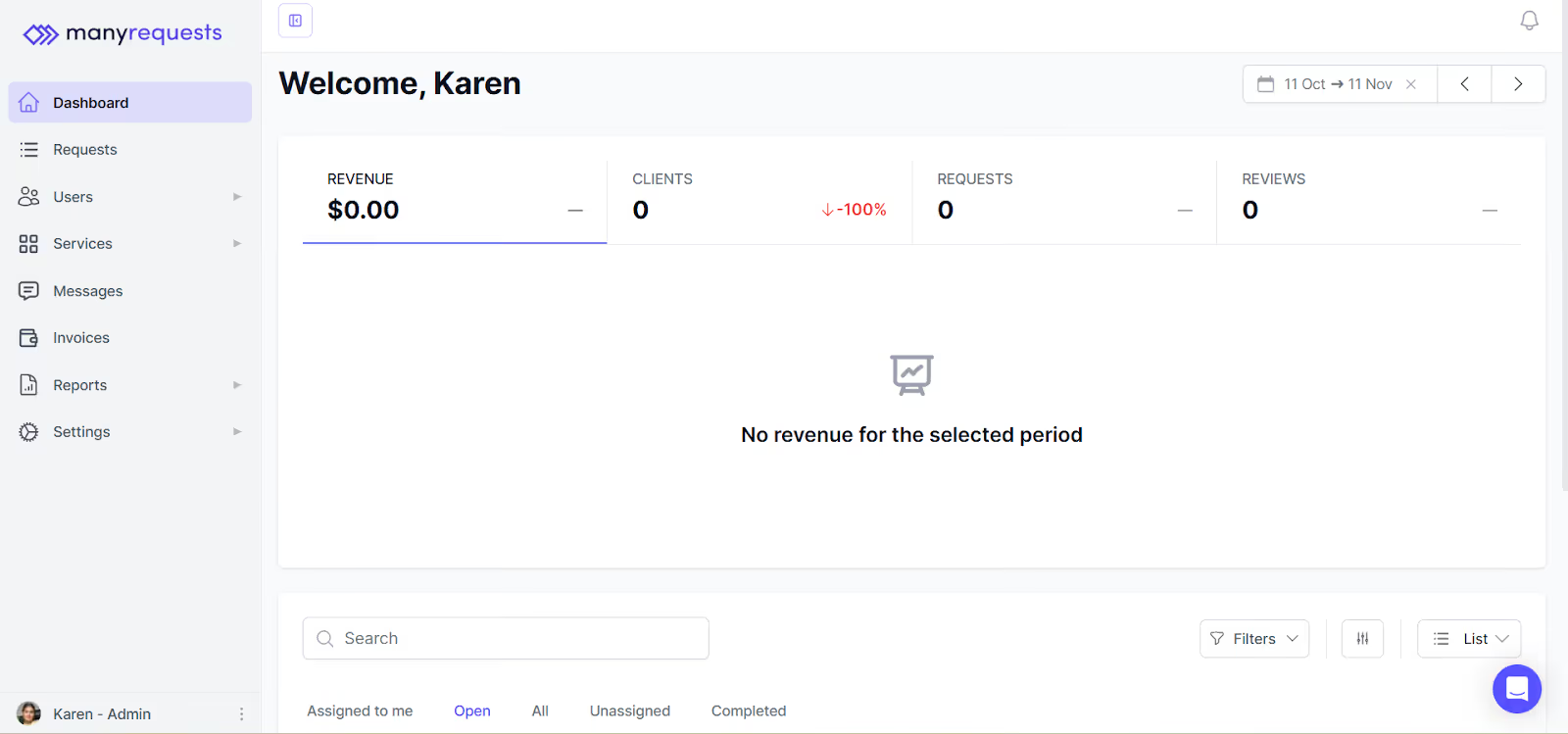
And this is the same portal after being rebranded by one of our customers, Prontto:
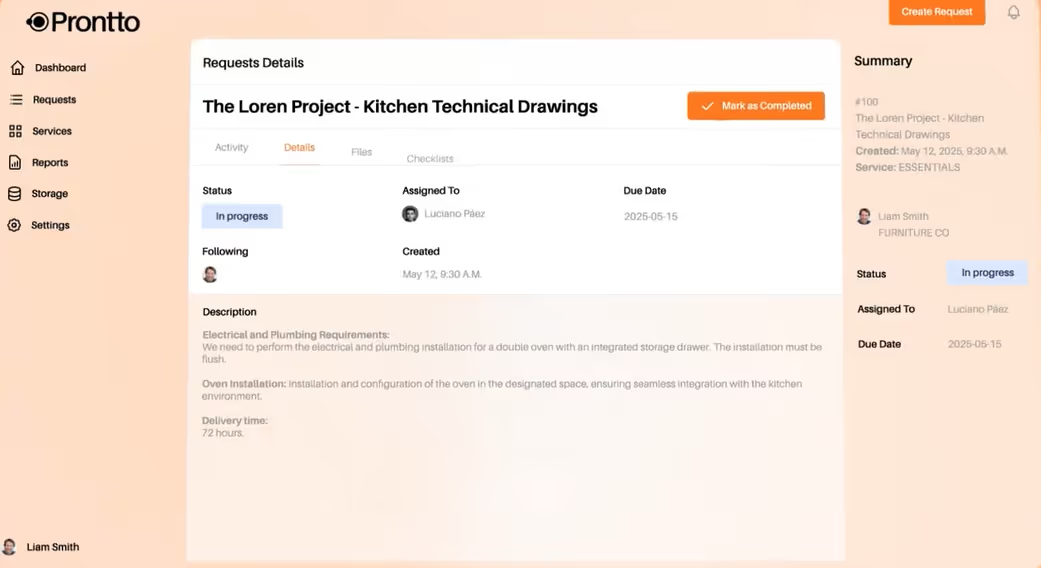
This white labelling also extends to the email you send. When clients receive notifications or messages from the portal, they don't have to see ManyRequests’ logo; they can replace it with their own branding.
Design feedback is one of the most fragile parts of a creative workflow. Project management tools like Jira that lack proofing features push agencies to gather feedback outside the design context.
Not us, though.
ManyRequests has a built-in design feedback and proofing to keep client input attached to the work itself.
You can share design files, including images, PDFs, or videos, directly with clients through the client portal. Clients review these files inside the platform instead of downloading them or switching tools.
When a client wants to provide feedback, they can annotate the file directly.
Each client comment is tied to a specific point or area in the document, which allows clients to be precise about what they’re referring to without needing to describe locations or elements in the text.
For example, a client can mark a specific section of a design and leave a comment explaining what needs to change.

That annotation stays anchored to the file, so the designer sees exactly what the feedback applies to when they open it.
And every feedback is connected to:
ManyRequests provides a central dashboard that puts all your active work in one place.
From this dashboard, you can see:
It looks like this:
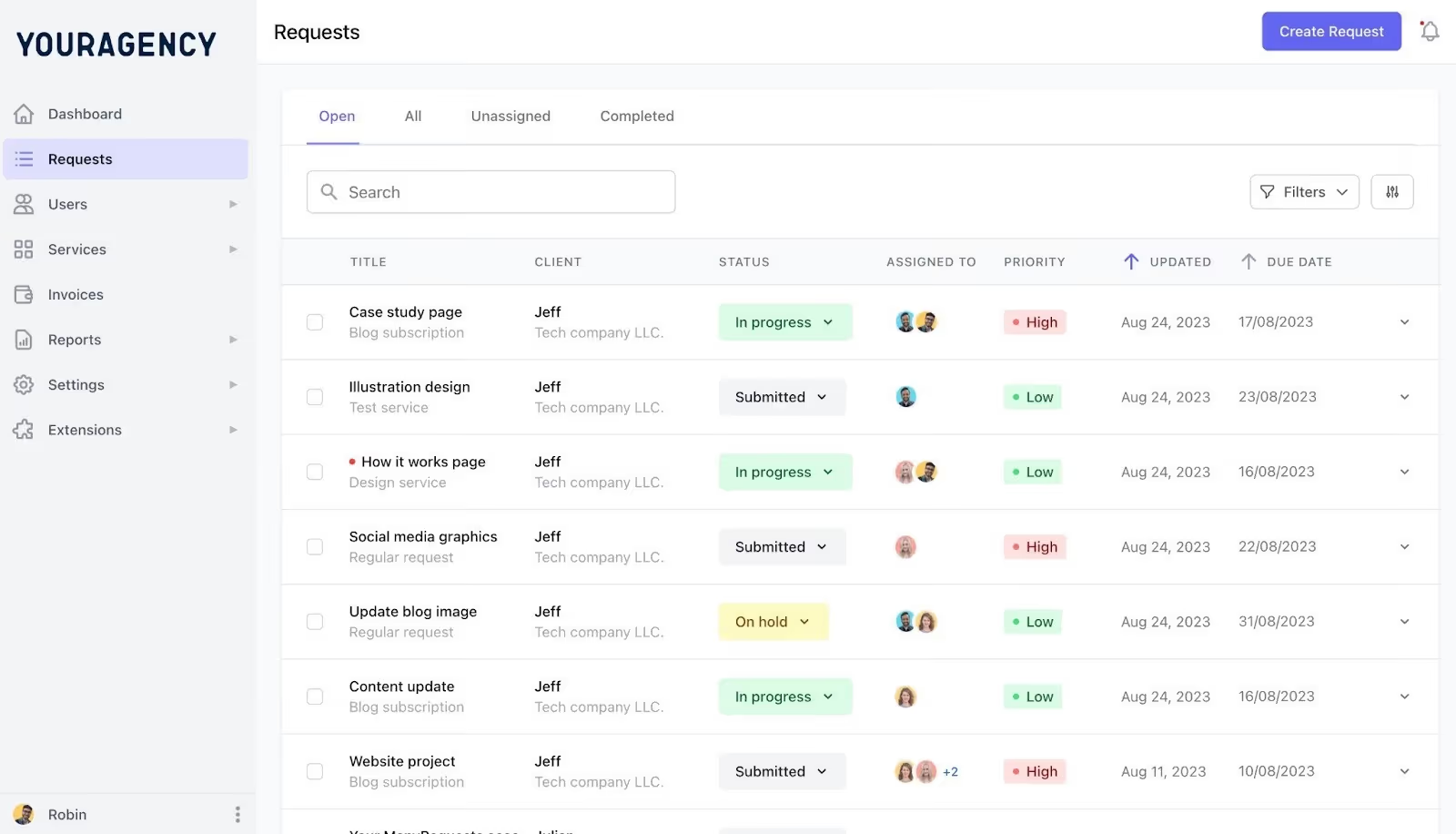
This view gives project leads a clear snapshot of what’s moving, what’s waiting, and where they need to focus more.
You can also filter tasks by client, team member, or status, if you need to isolate workloads or accounts.
The goal here is to make sure everything is visible to you at a glance.
On top of task visibility, ManyRequests also has the Workload View, which focuses on team capacity rather than task structure.
The Workload View shows how much work is assigned to each team member on a day-by-day basis using a horizontal timeline, so you can see what you’ve assigned, and when the work is scheduled to happen.
You can also;
This is particularly useful for agencies working with mixed teams (full-time staff, contractors, or freelancers) where they may not al be available at once.
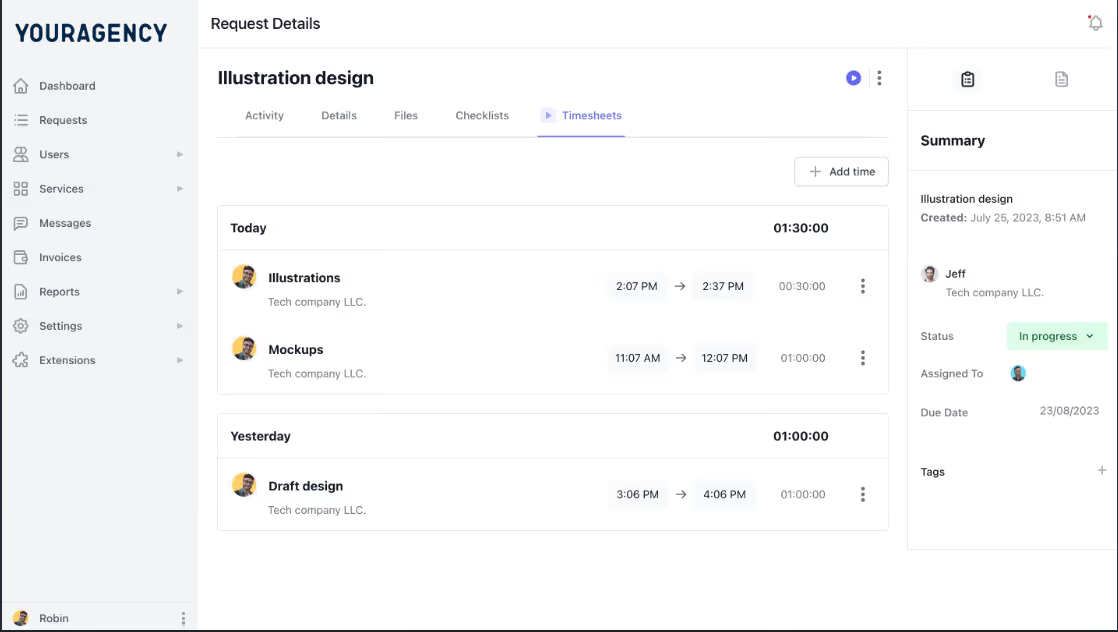
ManyRequests combines time-tracking, billing, and invoicing into a single workflow, so tracked work flows directly into client billing.
Here’s how it works in practice.
When a team member starts working on a request or task, they activate the built-in timer inside their tasks.
The system records the time spent on that work, even if the team member leaves the app while working.
Time is logged against:
Once the work is completed, ManyRequests structures and categorizes the tracked time, so you don't need to reconcile entries or reassign hours later.
From there, you can apply your own billing logic. ManyRequests lets you set your rates based on how you charge your clients. It can be:
ManyRequests also generates invoices directly from the tracked data to bill your clients. You can apply payment terms, review line items, and send the invoice without exporting your billing information to another tool.
ManyRequests delivers the invoice you send directly to your client in the client portal. Once it's delivered, they can view the charges alongside the work that generated them. ManyRequests also integrates with Stripe, so your client can pay invoices directly from the portal without leaving it.
Time tracking works well when agencies bill by the hour, but many agencies now sell their work as productized services. They have fixed offerings, retainers, or subscriptions with a defined scope and pricing.
If this is you, you may need to create custom setups or manual work outside the system to show clients your pricing.
ManyRequests provides a service catalog feature to improve how your clients see your productized services.
The Service Catalog lets you define your services as structured offerings. You can group similar tasks and projects you’ve done for recurring clients and group into a single service.
You can add descriptions, name the service you want to sell, and set a price (there's no complex setup here), and it looks like this example from one of our clients, MagicDesign:
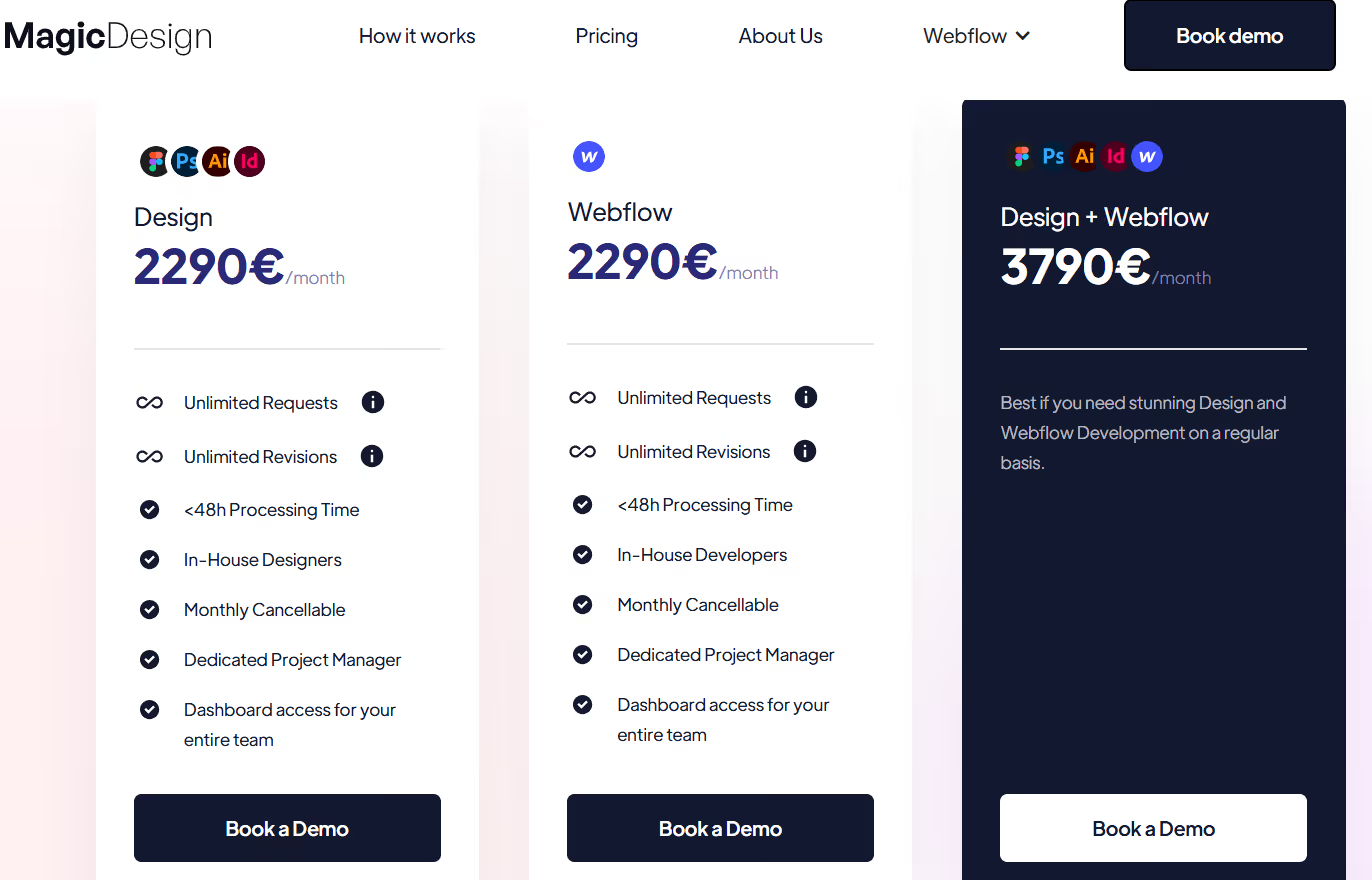
Once published, ManyRequests generates a shareable link for the catalog. You can add this link to your website or landing page to clearly present your services and pricing.
The experience is also straightforward from your client's or prospect’s side. They visit the catalog, review the available services, and select the one that fits their needs.
When a service is selected, ManyRequests generates a checkout page where they can subscribe or pay for the service.
Here’s an example of a fully customized checkout page from Flowspark:
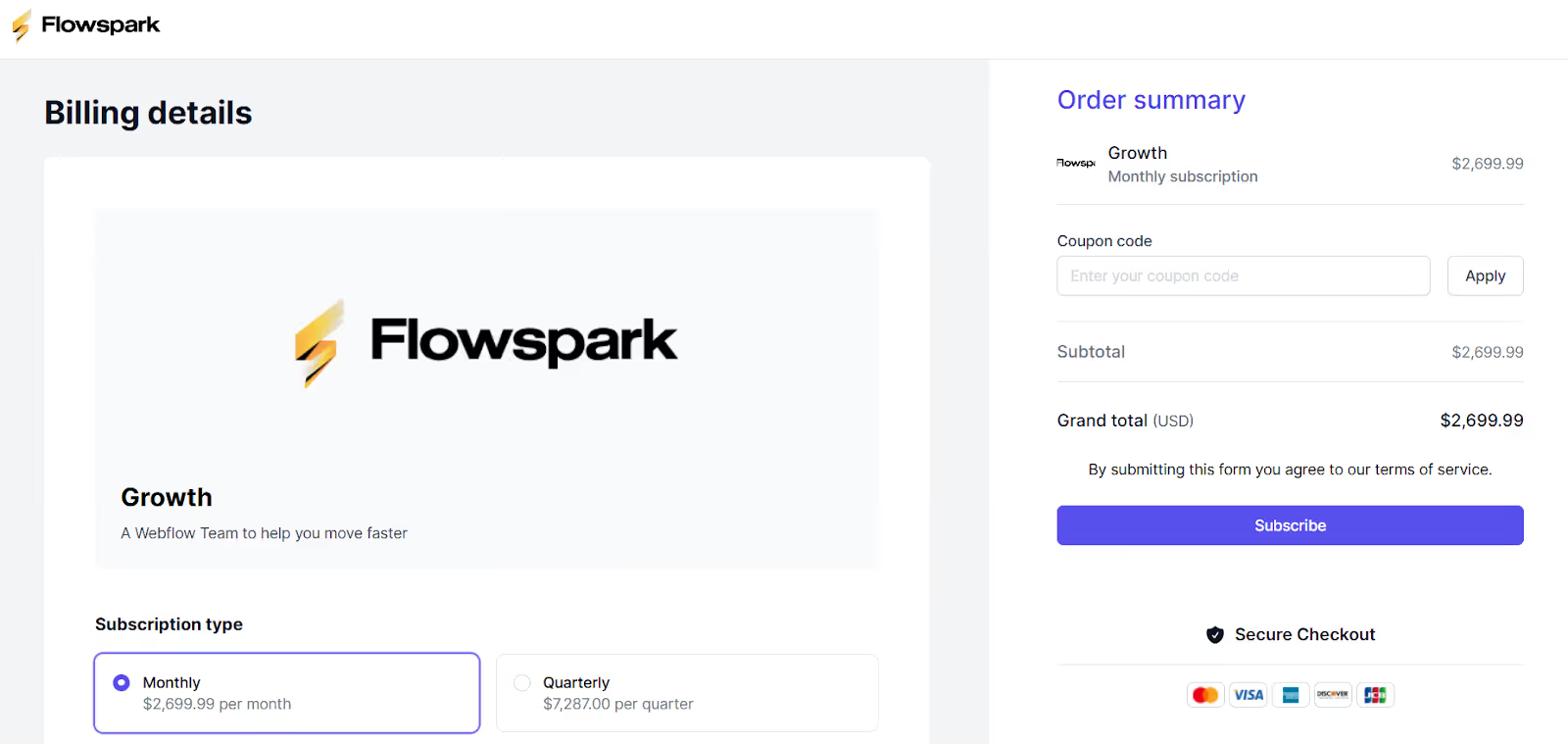
You can see that the client has already chosen the service they want (Growth). The system tells them how much it costs, and gives them an option to subscribe. You can customize this page as you’d like.
As you can see, Flowspark's branding is all over the page, so their clients wouldn't even know they have anything to do with ManyRequests.
It's clear that Jira, ClickUp, and ManyRequests aren’t competing to solve the same problem. They’re built for different types of work, and agencies run into trouble when they expect one category to behave like another.
So what should you do?
Choose Jira if your agency's work is similar to software development.
Jira is a solid choice if:
Choose ClickUp if you want maximum flexibility for your team:
ClickUp is a good fit if:
So, when should you choose ManyRequests, which we believe is the best project management tool for creative agencies?
Choose ManyRequests if your agency's work revolves around clients.
ManyRequests is the right fit if:
ManyRequests gives your clients a white-label client portal designed for how creative agencies deliver work. And you can do this while still managing your projects and team on the same platform.
Of course, your clients only see what you want them to see.
If you want to try ManyRequests to know how it works, you can sign up for our 14-day free trial (no credit card required).
1. See how ManyRequests works in real life. Start a free trial and experience how productized agencies centralize requests, reduce chaos, and streamline delivery, without changing their entire workflow.
2. Read our Implementation Guide to launch smoothly with your team and clients.
3. Follow us on LinkedIn and YouTube for practical agency growth strategies
4. Check out The Productize Blueprint to learn how to turn your services into a scalable, productized offer.
Adetola Rachael Iyanuoluwa is a B2B SaaS writer and content marketer with 4+ years of experience creating SEO, human-focused content. She writes in-depth how-to guides and comparison articles content that help SaaS companies grow organic traffic and turn readers into customers. At ManyRequests, she produces practical, well-researched content that helps agencies and service businesses streamline operations and scale sustainably.